
iBeta
 Info
Info
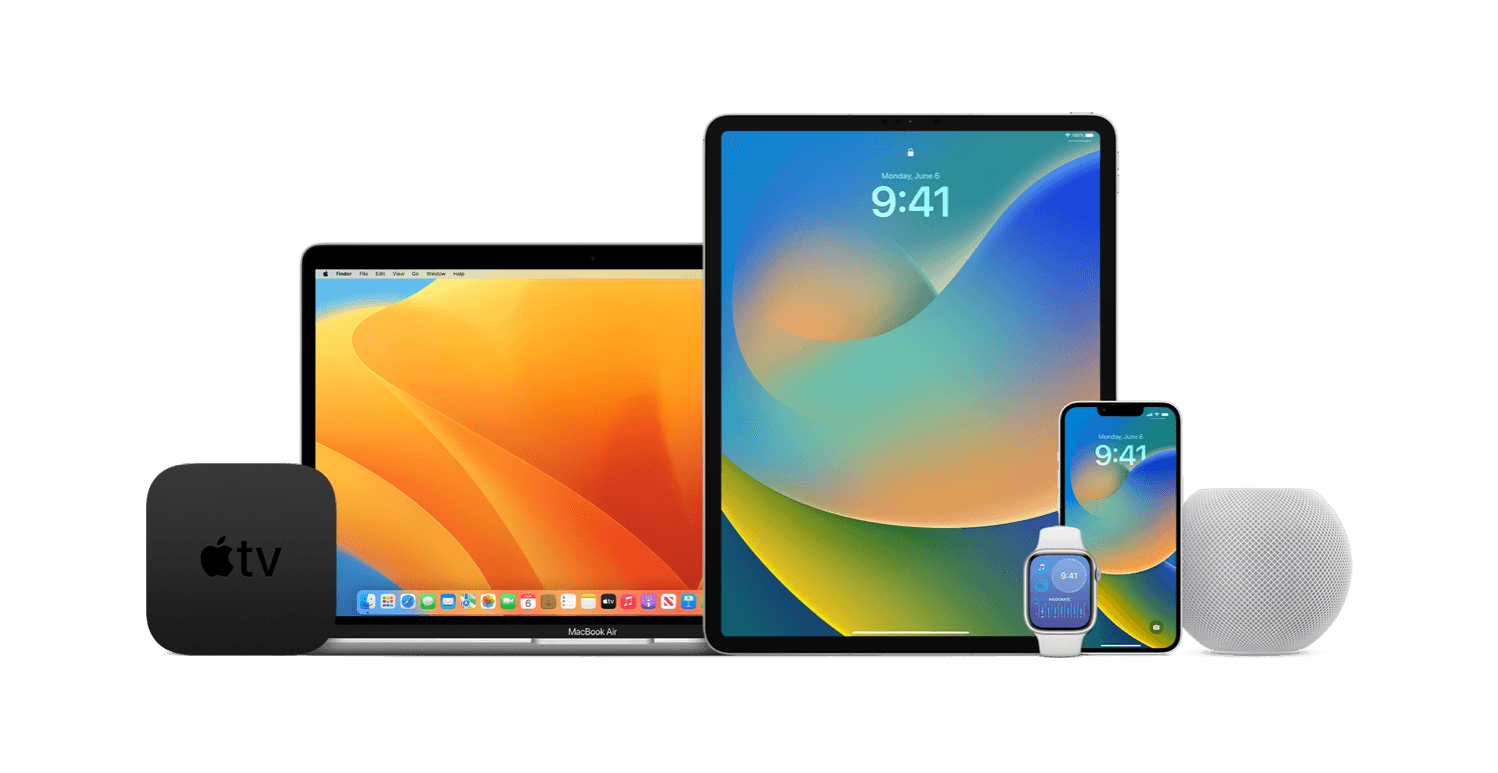
Welcome to iBeta!
•Here you can get the Apple Developer betas without a Developer account. All the files are from Apple.
•I recommend you to backup your iDevice before downloading beta software.
•If you are interested in Public Betas go to beta.apple.com
•This website is free and no ads forever
Not affiliated with Apple inc.
 Compatibility List
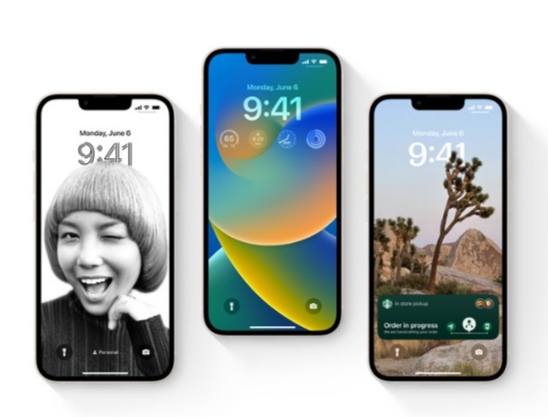
iOS 16 is compatible with these devices.
•iPhone 13
•iPhone 13 mini
•iPhone 13 Pro
•iPhone 13 Pro Max
•iPhone 12
•iPhone 12 mini
•iPhone 12 Pro
•iPhone 12 Pro Max
•iPhone 11
•iPhone 11 Pro
•iPhone 11 Pro Max
•iPhone XS
•iPhone XS Max
•iPhone XR
•iPhone X
•iPhone 8
•iPhone 8 Plus
•iPhone SE (2nd generation or later)
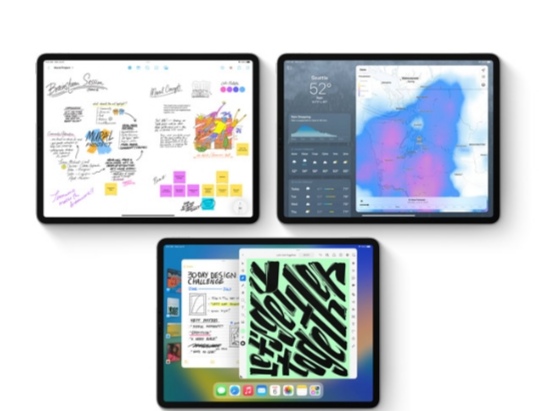
iPadOS 16 is compatible with these devices.
•iPad Pro (all models)
•iPad Air (3rd generation and later)
•iPad (5th generation and later)
•iPad mini (5th generation and later)
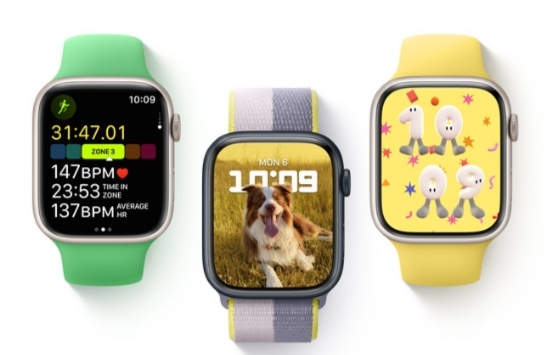
watchOS 9 is compatible with this devices.
•Apple Watch Series 4
•Apple Watch Series 5
•Apple Watch SE
•Apple Watch Series 6
•Apple Watch Series 7
*To install watchOS 9 you'll need an iPhone 8 or later with iOS 16 installed
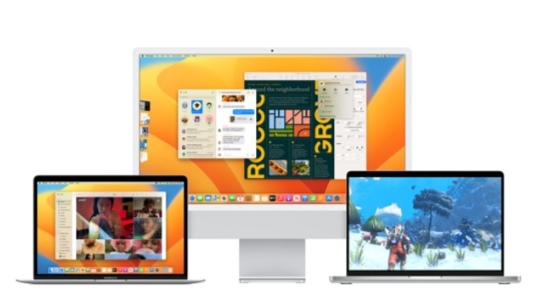
MacOS Ventura is compatible with these devices.
•iMac (2017 and later)
•iMac Pro
•MacBook Air (2018 and later)
•MacBook Pro (2017 and later)
•Mac Pro (2019 and later)
•Mac mini (2018 and later)
•MacBook (2017 and later)




 iOS 16

Get: urlday.cc/iOS16Dev
❗By downloading and installing this profile, you are enrolled in Apple's Developer Beta program.
The iOS 16 developer beta is still in development, which means some applications and services may not work as expected and their data may not be fully compatible. Be sure to back up your iOS device with iTunes before installing this beta software.
How to backup?
>With Mac: https://support.apple.com/en-us/HT211229
>With PC: https://support.apple.com/en-us/HT212156
 iPadOS 16
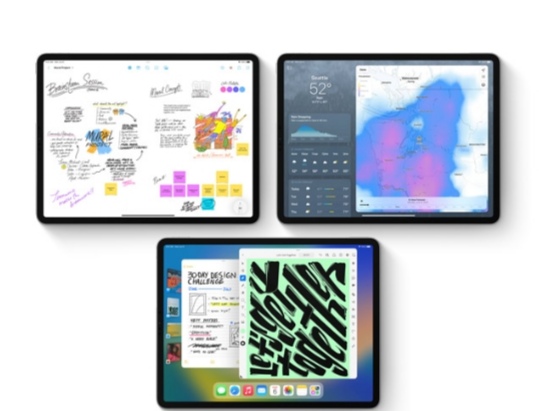
Get: urlday.cc/iPadOS16Dev
❗By downloading and installing this profile, you are enrolled in Apple's Developer Beta program.
The iPadOS 16 developer beta is still in development, which means some applications and services may not work as expected and their data may not be fully compatible. Be sure to back up your iPad with iTunes before installing this beta software.
How to backup?
>With Mac: support.apple.com/en-us/HT211229
>With PC: support.apple.com/en-us/HT212156
 watchOS 9
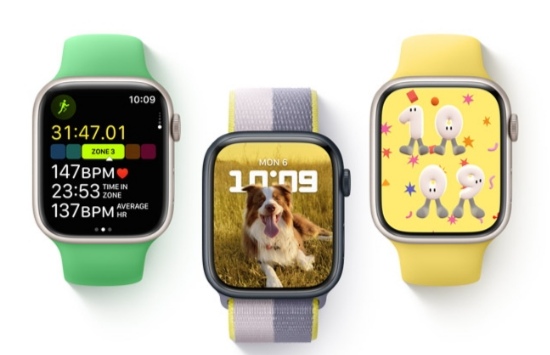
Get: urlday.cc/watchOS9Dev
❗By downloading and installing this profile, you are enrolled in Apple's Developer Beta program.
The watchOS developer beta updates are still in development, which means some applications and services may not work as expected, and their data may not be fully compatible. Apple Watch backs up automatically to your paired iPhone.Please note Apple Watch cannot be restored to previously-released OS versions once the developer beta is installed.
About backup:
 macOS Ventura
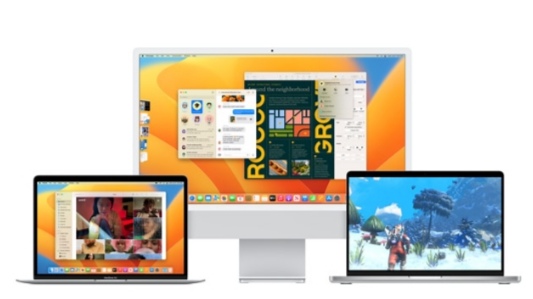
Get: urlday.cc/MacOSVenturaDev
❗By downloading and installing this profile, you are enrolled in Apple's Developer Beta program.
The macOS developer beta updates are still in development, which means some applications and services may not work as expected, and their data may not be fully compatible.I reccomend you to backup your Mac before installing this beta software.
How to backup?
 tvOS 16
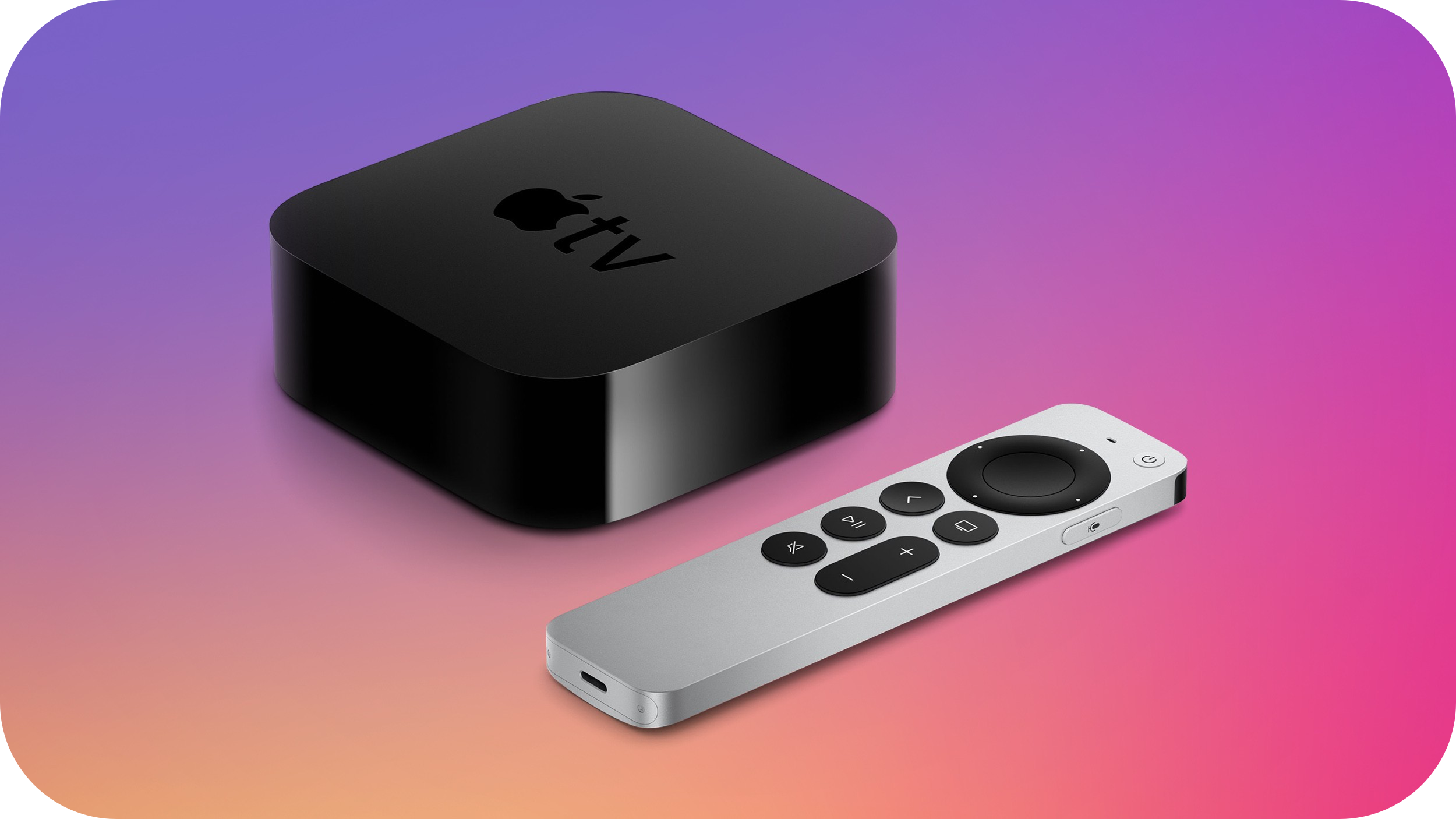
1. Open the Settings⚙️ app, Go to-General >Privacy >Send Apple TV Analytics.
2. When you have Share Apple TV Analytics selected, don’t click on it. Instead, press the Play/Pause button on the remote and it will open the Add Profile menu, press Play/Pause button again on this option.
3. In the text field that pops up, type https://urlday.cc/tvOS16Dev (⚠️Do not paste that link from your 📱iPhone because it will not work, type it on your TV) , then click Done and select Install.
4. Reboot when prompted🔄
❗5. Make sure Settings⚙️>System >Software Update >Get public beta updates is set to OFF.
 HomePodOS 16
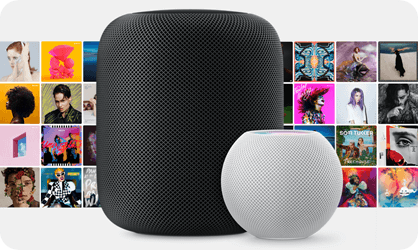
Get: urlday.cc/HomePod16Dev
❗By downloading and installing this profile, you are enrolled in Apple's Developer Beta program.
The HomePodOS 16 developer beta is still in development, which means some services may not work as expected and their data may not be fully compatible.
There are no backup options available :(

 BlockOTA
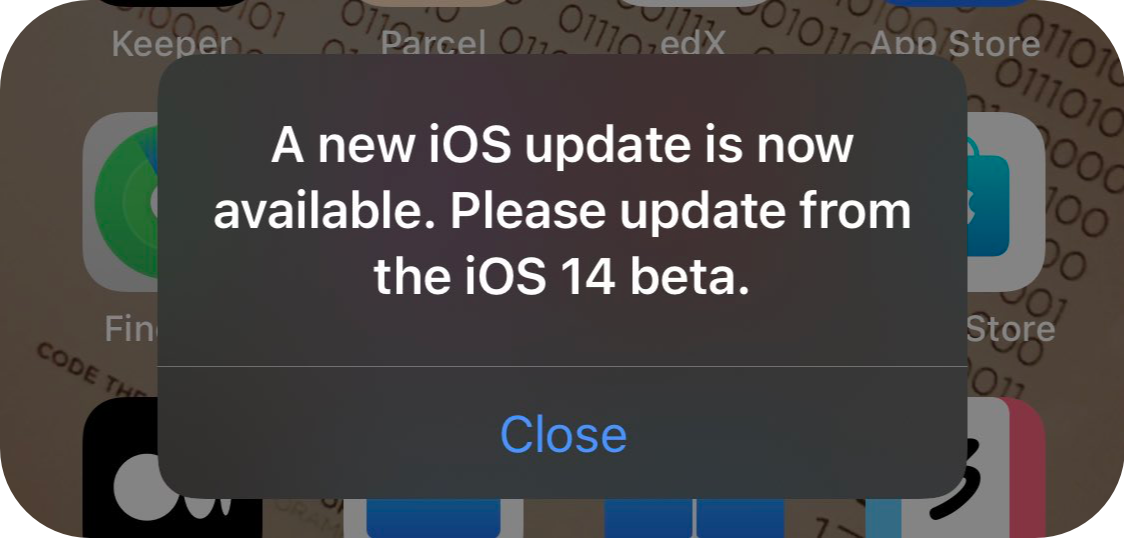
Get: urlday.cc/block_ota
This will install a tvOS profile that blocks the New update available notification.
No need for backup :)